Chrome and Firefox
Design Extractor
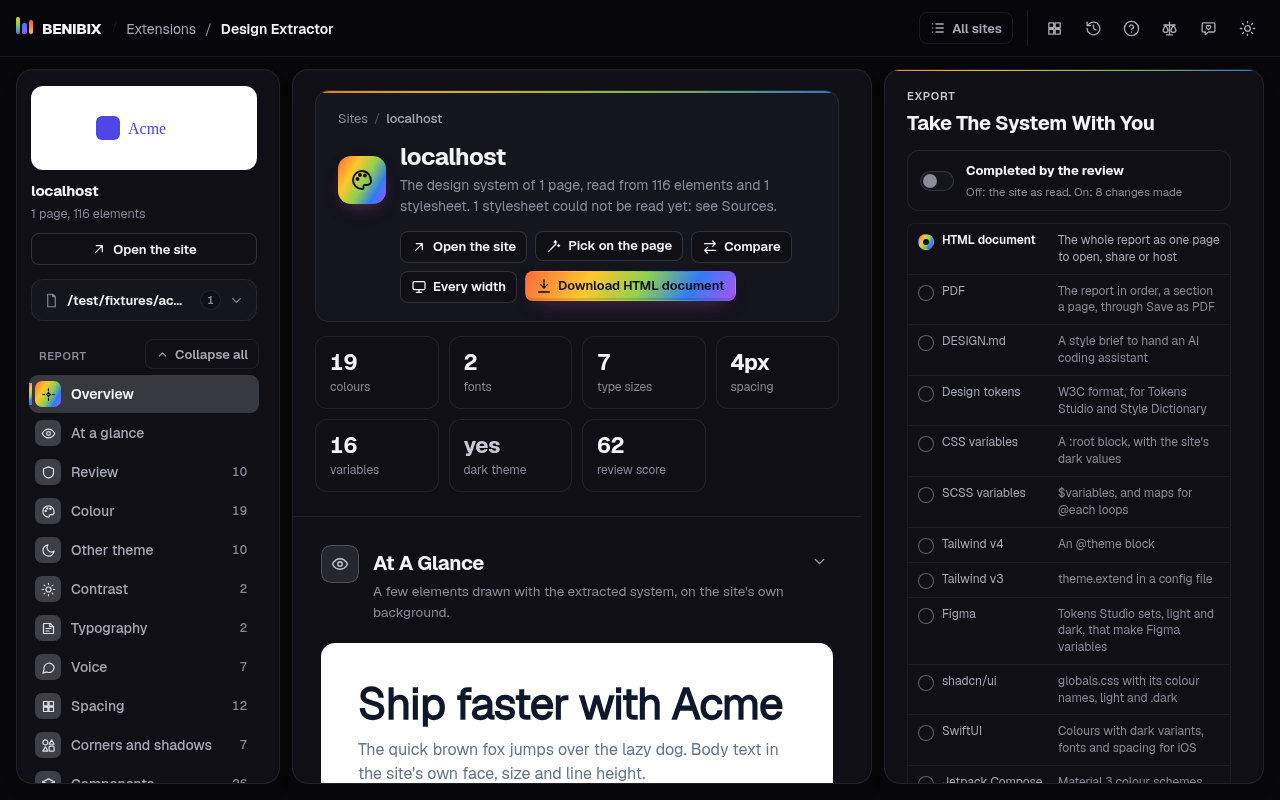
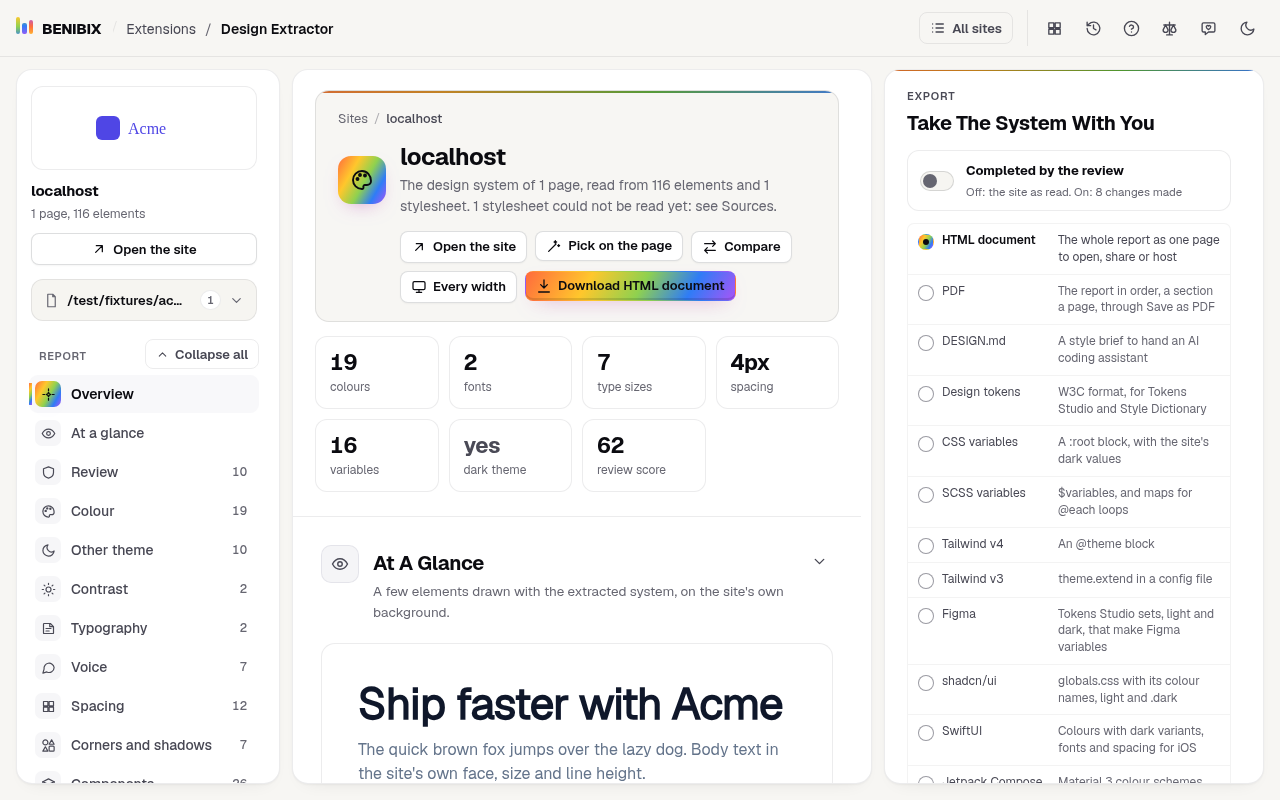
Any website's design system in one click: colours, type, spacing and components, as design tokens, CSS, Tailwind or DESIGN.md.
Coming soon
For Chrome and Firefox, and Edge, Brave, Opera and Vivaldi through the Chrome Web Store. Each one works on the page you are on, asks only for the permissions that job needs, and keeps what it sees in your browser.
Any website's design system in one click: colours, type, spacing and components, as design tokens, CSS, Tailwind or DESIGN.md.
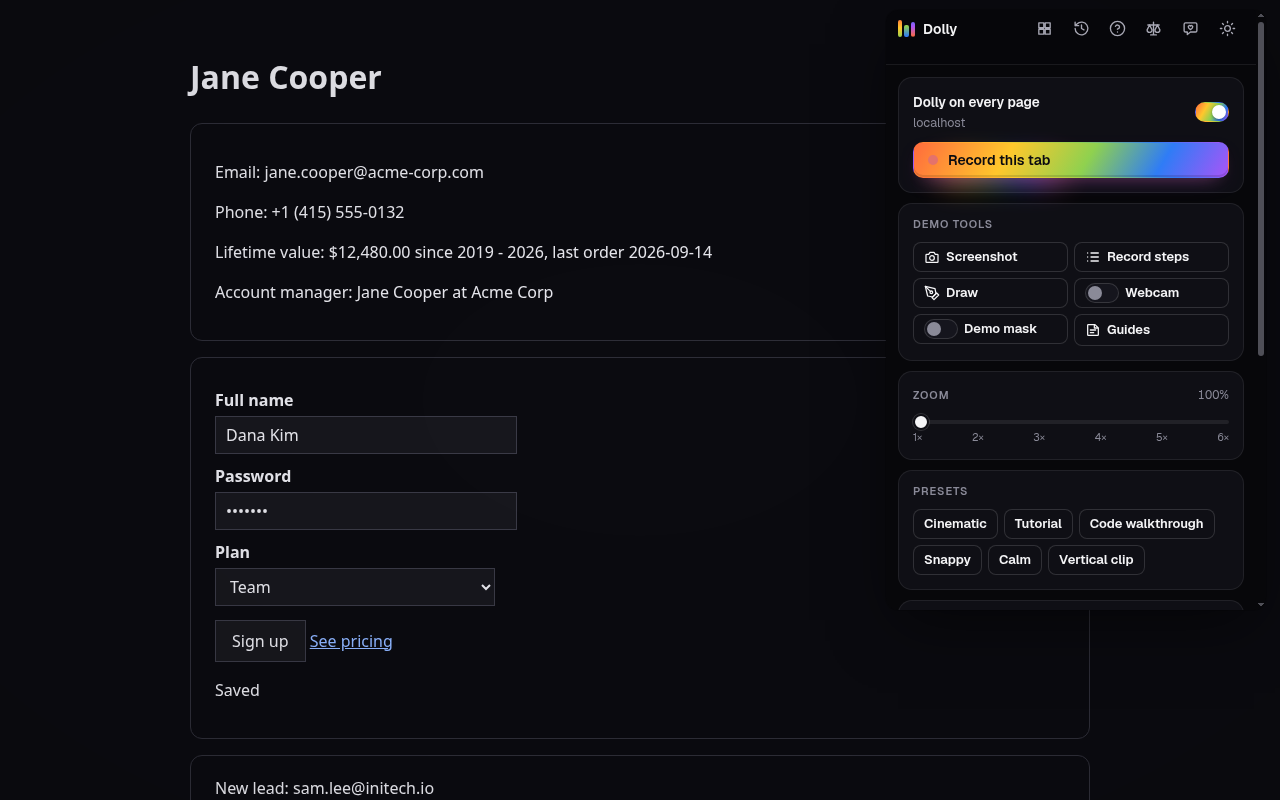
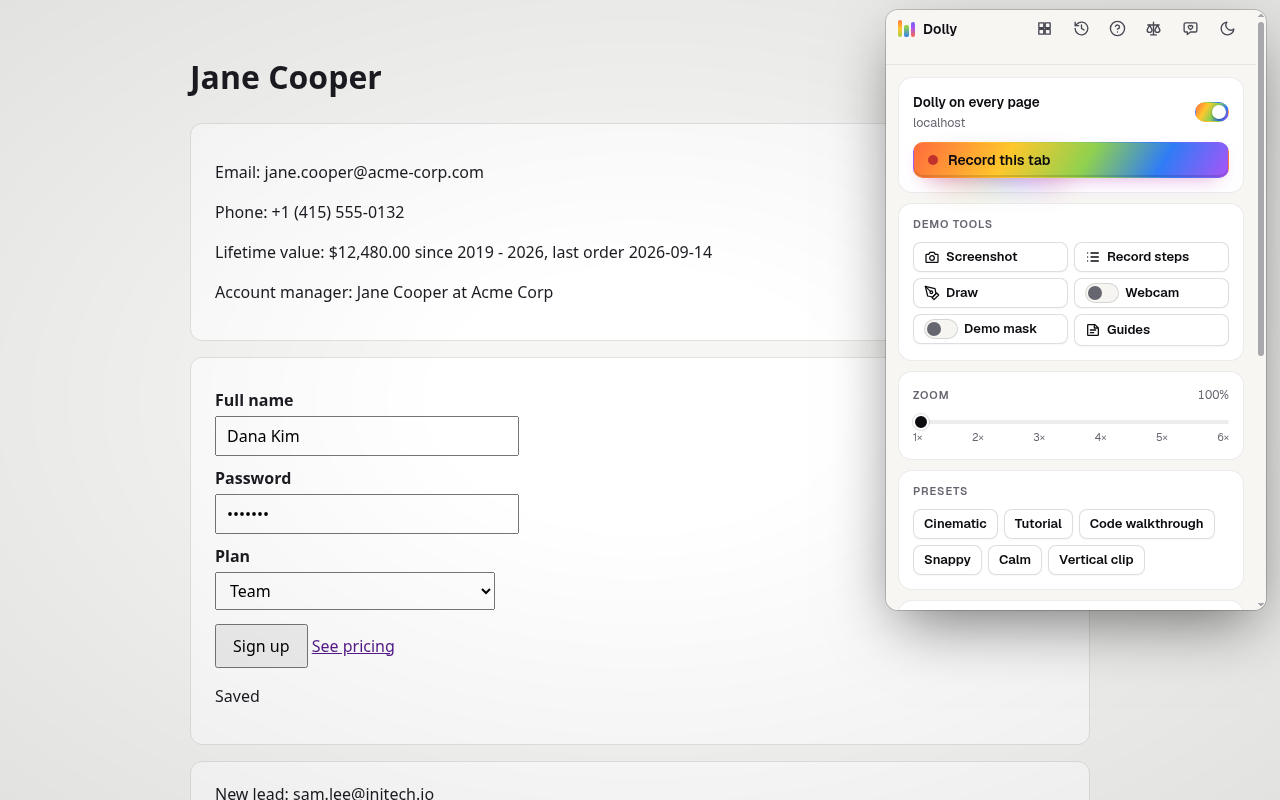
Smooth cinematic zoom, camera moves, motion blur and tab recording for screen recordings and live demos, right in the browser.
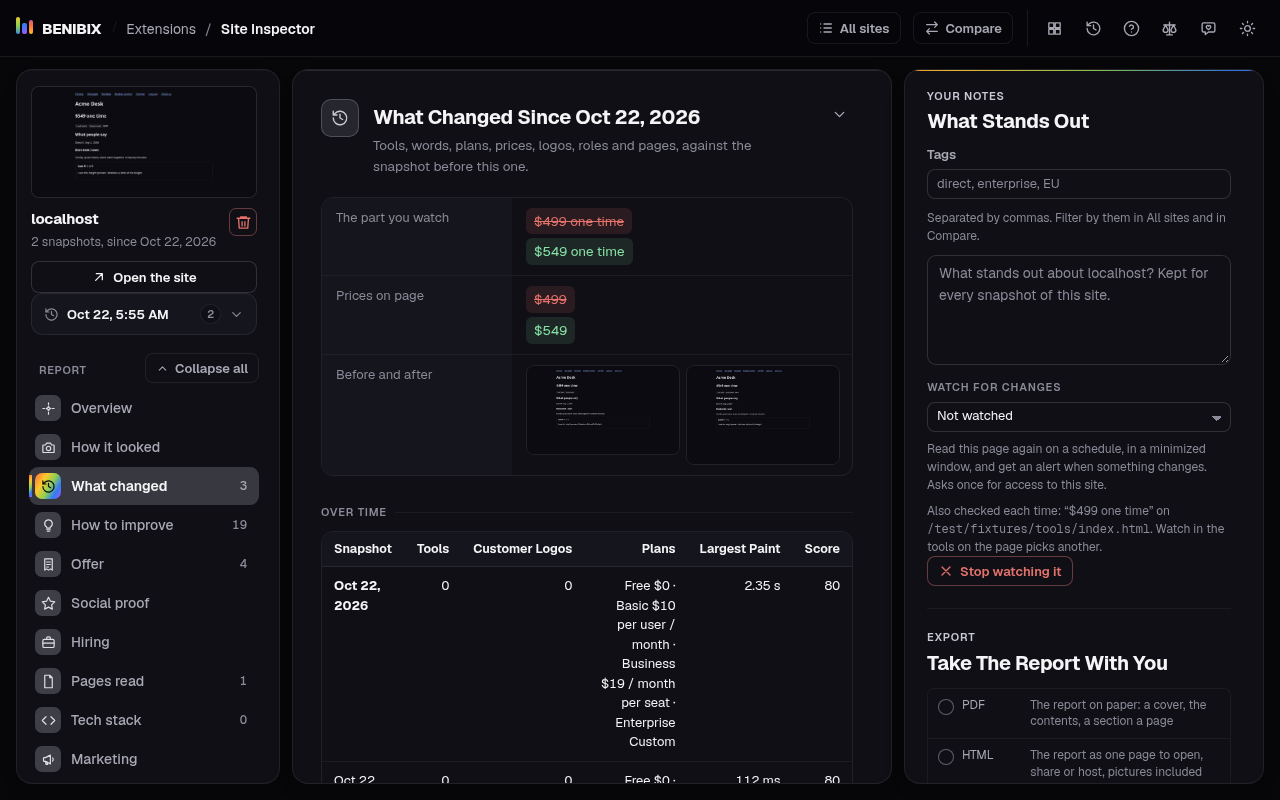
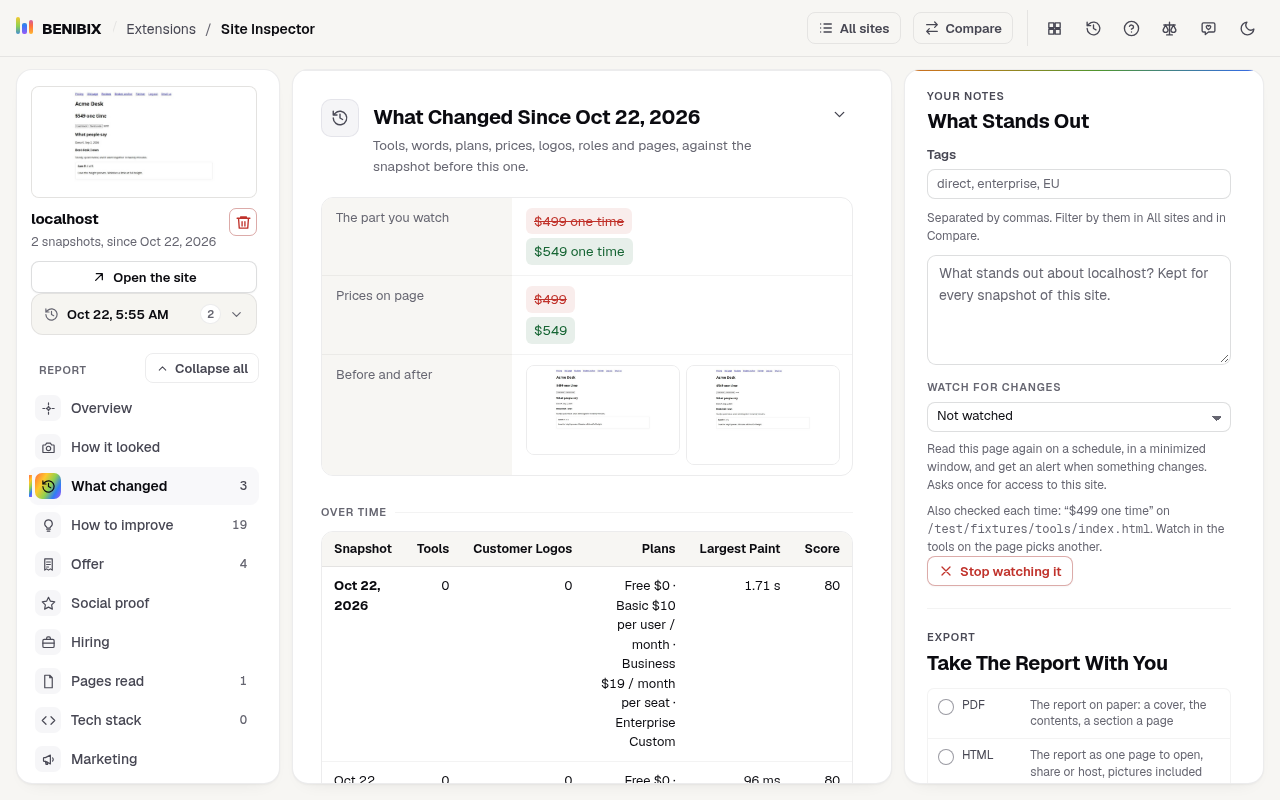
Tech stack, trackers, pricing, sitemap, SEO, design and speed of any website in one report. Compare competitors side by side.
Open links on a pace, export tabs, grab tables, copy as Markdown, highlight pages, fill test forms, type snippets, block sites.
Every step for Chrome and Firefox. It takes a minute, and you can undo it in one.
Also Edge, Brave, Opera and Vivaldi, which add extensions from the Chrome Web Store the same way.
chrome://extensions, Details, Site access.chrome://extensions.On the desktop. Firefox for Android adds them from the same store, under Settings, Add-ons.
about:addons and pick the extension.about:addons.Chrome and Firefox on the desktop. Edge, Brave, Opera and Vivaldi add extensions from the Chrome Web Store, so the Chrome version works there too. Safari is not supported.
Every browser lists what an extension may do before you add it. The extension's page here explains every item on that list, and why it is needed.
Each page lists what the extension reads, keeps and sends, and each has its own privacy policy. None has an account, analytics or ads, and none sells or shares data.
Right-click its button in the toolbar and pick Remove from Chrome, or Remove Extension in Firefox. What it kept goes with it.
BENIBIX is independent: it is not made, endorsed or supported by Google, Figma, Tailwind Labs or Mozilla. “Chrome”, “Chrome Web Store”, “Google Public DNS” and “YouTube” are trademarks of Google LLC, “Figma” of Figma, Inc., “Tailwind CSS” of Tailwind Labs Inc. and “Firefox” of the Mozilla Foundation; they are used here only to say what the browser extensions work with or refer to.